Reading Microsoft 365 Email Headers
Messages that pass through Exchange Online carry extra headers that record filtering verdicts, bulk scores and authentication details.
Last reviewed October 26, 2026 · 8 min read
A header from a Microsoft 365 mailbox looks busier than one from a personal account. Alongside the usual Received lines there are several X- fields that Exchange Online Protection and Microsoft Defender for Office 365 add as a message is filtered.
You do not need all of them. A handful explain most of what you want to know: where the message came from, whether it was judged to be spam and whether the sender passed authentication.
X-Forefront-Antispam-Report: the summary line
This is the header worth learning first. It packs a series of key-value pairs into one line, separated by semicolons, and records what the filtering service concluded. Microsoft documents the main fields:
- CIP: the connecting IP address, the machine that actually handed the message to Microsoft.
- CTRY: the country or region, derived from that connecting IP. Microsoft notes it can differ from the true originating sender.
- SFV: the spam filtering verdict. NSPM means marked as not spam and delivered. SPM means marked as spam by filtering. SFE and SKA mean filtering was skipped because the sender was on a safe list. BLK and SKB mean the sender was blocked.
- CAT: the threat category applied, for example PHSH for phishing, MALW for malware, SPOOF for spoofing or BULK for bulk mail.
- DIR: the direction of the message: INB for inbound, OUT for outbound, INT for internal.
A note on SCL
Older guides lean heavily on the spam confidence level, or SCL, a number attached to each message. Microsoft’s own documentation now says that in cloud organisations the SCL value in this header does not determine whether a message is spam or what action is taken. It is mainly used in on-premises Exchange and hybrid setups, and Microsoft points readers to the CAT and DIR fields to understand filtering. If you see advice that tells you to read the SCL as a spam score, treat it as out of date for Microsoft 365.
Authentication-Results and compauth
Microsoft adds an Authentication-Results header that records SPF, DKIM and DMARC outcomes, as described in our guide to those standards. The SPF result can be pass, fail, softfail, neutral, none, temperror or permerror, and the DKIM result can be pass, fail or none. The DMARC result can be pass, fail, none, or bestguesspass, which Microsoft uses when the sending domain publishes no DMARC record.
It also adds something specific to Microsoft: compauth, short for composite authentication. It combines several signals into one result for the From domain, and can be pass, softpass, fail or none. A compauth failure does not automatically mean the message was blocked. The accompanying reason code explains why, for example 100 for an SPF or DKIM pass with alignment, or 130 where a trusted ARC sealer overrode a DMARC failure.
Bulk mail: the BCL
The X-Microsoft-Antispam header carries a bulk complaint level. A higher BCL means a bulk message is more likely to generate complaints. Microsoft also uses SRV:BULK in the forefront report to flag mail identified as bulk, and by default treats mail above the configured threshold as spam. If a legitimate newsletter lands in junk for Microsoft recipients, this is where the evidence is.
Finding the delay inside Microsoft 365
The Received lines tell the timing story. A message to a Microsoft 365 mailbox typically shows several hops inside Microsoft’s own network, with names that refer to protection services and the mailbox server. The gap that matters is between the first Microsoft hop, where the message was accepted, and the last, where it reached the mailbox.
A large gap there points to filtering time, not network trouble, and attachments are the usual reason. Our guide to security scanning explains how Safe Attachments can add several minutes to a message that contains a file.
How to use these fields
A quick routine for a message that behaved strangely:
- Open the X-Forefront-Antispam-Report and read SFV and CAT first. They tell you the verdict.
- Check CIP against the sender you expected. A surprising IP or country is worth a second look.
- Read Authentication-Results for SPF, DKIM, DMARC and compauth. A failure here often explains the verdict.
- For timing, compare the first and last Microsoft hops in the Received lines.
A worked example
Suppose a message arrives with X-Forefront-Antispam-Report containing CIP:203.0.113.10; CTRY:US; SFV:NSPM; CAT:NONE; DIR:INB. Read it field by field: the connecting IP is 203.0.113.10, a documentation address used here for illustration. The country is the United States. The verdict is not spam. No threat category was assigned. The direction is inbound.
Now suppose SFV:SPM and CAT:PHSH appear instead. The message was judged spam and categorised as phishing. If it still reached the inbox, a transport rule or user setting overrode the verdict, and that is worth asking an administrator about.
Questions these headers answer
Used together, they answer the questions people ask most often.
- Why is this message in my junk folder? Read SFV and CAT.
- Did the sender really send this? Read SPF, DKIM, DMARC and compauth in Authentication-Results.
- Where did it come from? Read CIP and CTRY, remembering the country comes from the connecting address.
- Why was it late? Compare the first and last Microsoft hops in the Received lines.
Where each header is added
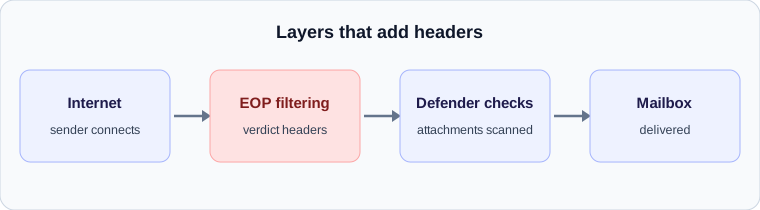
Headers are added in the order a message passes through the service, so reading the Received lines and the X- fields together tells you what happened in sequence. The connecting IP in the forefront report belongs to the system that handed the message to Microsoft, which is often a sending service or a gateway, not the person who wrote the message. That is why the country and IP are clues about the route, not about the author.
If you administer a tenant, the same fields are the first thing worth collecting when a user reports that mail is missing or late. A full header from an affected message, plus one from a comparable message that behaved normally, lets you see what differed. In most cases the difference is a single field, such as a verdict, a bulk level or an authentication result.
Check your own email
Paste a raw header into the free analyzer to see every hop, the time spent at each one and the largest gap. It runs in your browser and nothing is uploaded.
Open the email header analyzer