How Security Scanning Delays Email
Attachment sandboxing, link rewriting and gateway filters protect inboxes, and they are also a common reason mail arrives minutes late.
Last reviewed October 26, 2026 · 7 min read
If your email arrives in a company inbox much later than it should, the first suspect is often the network, and the real cause is frequently security software. Modern mail systems do not simply pass messages along. They open attachments in isolated environments, check links against reputation data and run content through several filters before the recipient sees anything. Each step takes time.
The delay is usually acceptable and sometimes intentional. The trouble starts when you do not know it is happening and assume the sender made a mistake.
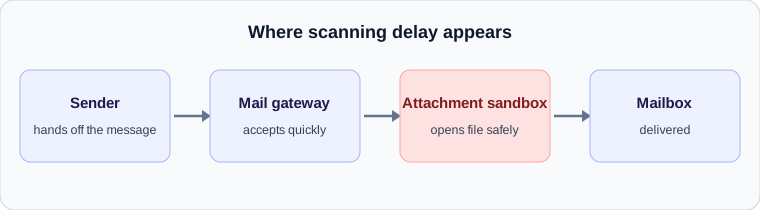
Where scanning happens in the path
A message to a company mailbox typically passes through several layers. There may be a cloud filtering service at the edge, an on-premises gateway, and the mailbox platform’s own protection. Each layer can add a Received line, or sometimes only an X- header recording its verdict, and each can hold the message while it works. That is why a header from a corporate recipient often shows two or three hops inside the same organisation.
Attachment sandboxing in Microsoft 365
Microsoft Defender for Office 365 includes a feature called Safe Attachments. It has four possible actions on a policy: Off, Monitor, Block and Dynamic Delivery. Block is the default and is recommended in the Standard and Strict preset policies. It quarantines messages with detected malicious attachments, and Microsoft notes that both Block and Monitor can delay the delivery of safe messages while scanning runs.
Dynamic Delivery exists to avoid that. It delivers the message body immediately and puts a placeholder where each attachment goes, then replaces the placeholder once scanning finds the file safe. Microsoft states that attachment scanning typically finishes within 15 minutes, and that it can take longer because of retry delays and analysis time. So a message with an attachment that arrives about a quarter of an hour late, while plain text messages from the same sender are instant, matches the documented behaviour.
What this looks like in the header
The tell is the pattern. A gap inside the recipient’s organisation, after the message has been accepted from outside, with the same sender’s attachment-free mail arriving normally, points to scanning. Microsoft services also add their own headers recording verdicts and spam confidence, and a gap between the hop that received the message and the hop that handed it to the mailbox is the time it spent in the pipeline.
Policy changes have a lag of their own. Microsoft notes a new or changed Safe Attachments policy typically takes about 30 minutes to take effect, which can make a fix look like it did nothing.
Link rewriting and time-of-click checks
Link protection works differently. Instead of scanning once at delivery, it rewrites URLs so that they pass through a checking service when clicked. The rewritten links show up as long strange addresses on a security vendor’s domain. This does not usually delay delivery of the message, but it can add time to opening a link, and it explains why a link in a forwarded message looks different from the one the sender typed.
Why some messages are held longer than others
Not all messages are treated alike. Scanning effort tends to rise with risk signals. A new sender, an attachment type that is commonly abused, a message with unusual structure, an authentication failure or a domain with no history can all send a message through deeper analysis. A familiar sender sending a plain note rarely sees any delay at all. That asymmetry is why the same person can report that some of your emails are instant and others are slow.
What you can and cannot do about it
As a sender, you cannot switch off the recipient’s scanning, and you should not want to. You can reduce the odds of heavier scrutiny by authenticating your mail properly, avoiding unusual attachment formats such as password-protected archives, and sending large documents through a shared link instead of attaching them.
As a recipient or administrator, the useful questions are whether the delay is consistent, whether it affects only attachments, and which hop in the header it sits at. If the answer to the last is inside your own organisation, your security or messaging team can see logs for it. If you manage the policy yourself, Dynamic Delivery is the setting designed to take the delay out of the user’s experience while keeping the protection.
A worked example
Picture two messages sent to the same organisation a minute apart. One is plain text. The other has a PDF attached. The plain message shows hops separated by seconds. The one with the attachment shows the same early hops, then a gap of several minutes before the last hop into the mailbox.
Nothing is wrong with either message. The second spent that time in a scanning stage. The way to confirm is to compare it with a no-attachment message from the same sender: if only attachments carry the gap, scanning is the cause.
What to do when the delay is the scanner
Because the delay is deliberate, the options are about managing it, not removing it.
- For time-sensitive documents, send a link to a trusted file location in place of the attachment.
- Avoid unusual file types and password-protected archives, which attract extra attention.
- Ask your administrator whether trusted senders can be exempted from the longest scanning mode, understanding that this trades some protection for speed.
- When reporting the problem, quote the two timestamps either side of the gap and say whether an attachment was present.
How to tell scanning from a queue backlog
Both produce a gap at one hop, which is why they are often confused. Two checks separate them. First, a scanning delay is repeatable: the same attachment sent again takes about as long. A backlog is not repeatable, because it depends on how busy the system was at that moment. Second, scanning is tied to content, while a backlog affects everything. A plain message sent at the same moment will pass quickly through a scanner but slowly through a backlog.
Knowing which one you are dealing with changes who you speak to. A scanning delay is a policy question for the recipient’s security team. A backlog is an availability question for their mail operations team.
Check your own email
Paste a raw header into the free analyzer to see every hop, the time spent at each one and the largest gap. It runs in your browser and nothing is uploaded.
Open the email header analyzer