MX Records and DNS: How Mail Finds Its Destination
Before a single byte of your message moves, the sending server asks DNS where to deliver it. Problems at that step look like delays.
Last reviewed October 26, 2026 · 7 min read
An email address contains a domain, but a domain is not a mail server. Something has to translate “example.org” into the machine that accepts mail for it, and that something is the Domain Name System. The records that answer the question are called MX records.
DNS problems are a common and underrated reason for slow mail. The lookup happens before the connection, so when it fails or stalls, the message simply sits in the sender’s queue and nothing about the delay looks like a mail problem.
What an MX record is
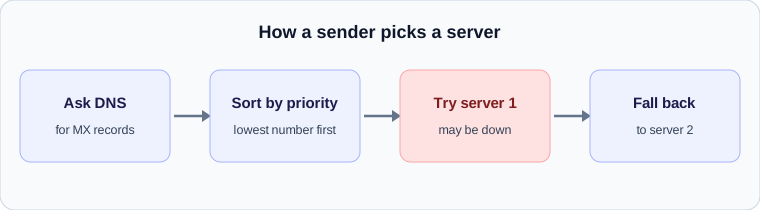
An MX, or mail exchange, record is a DNS record that tells sending systems which server handles incoming mail for a domain. A domain can have several, and each carries a priority number. The sending server asks DNS for the MX records, sorts them by priority and connects to them in order.
A lower number is tried first. If a domain publishes mailhost1 with priority 10 and mailhost2 with priority 20, senders will try mailhost1 first. Records with the same priority share the load between them. The record must point at a hostname that resolves directly to an address, not at a CNAME alias, which is a frequent source of misconfiguration.
What happens when the first server fails
If the highest-priority server refuses the connection or does not answer, the sender moves on to the next. That is the whole point of having more than one record. The backup server is only used when the primary cannot handle delivery, and the sender usually finds out by trying.
This is a source of small delays that are easy to miss. A connection attempt to a dead server has to time out before the sender moves on, and connection timeouts are measured in tens of seconds, sometimes minutes. A message can arrive intact and slightly late simply because the first server in the list was unreachable.
Where DNS causes real delays
Three DNS-related failure patterns account for most of the slow mail that has nothing to do with the mail servers themselves.
- The lookup itself fails or times out. If the sender’s resolver cannot reach the domain’s name servers, the message cannot even begin its journey, and a well-behaved server treats this as a temporary failure and retries later.
- Stale or wrong records. When a domain changes mail provider and the old MX records are still cached by resolvers, some senders deliver to the old server while others reach the new one. Messages sent to the old destination can be delayed or lost.
- No MX record at all. If a domain has no MX record, the standard behaviour is to fall back to the domain’s address record, which works by accident for small sites and fails for everyone else.
Why TTL matters when you change providers
Every DNS record has a time-to-live, a number of seconds that resolvers are allowed to keep a cached answer. A long TTL means changes spread slowly. If you move your mail from one provider to another and the old MX records had a TTL of a day, some senders will keep delivering to the old address for up to that long after you made the change.
The practical advice is dull and works: lower the TTL a day or two before a migration, make the switch, confirm mail is arriving at the new place and only then raise the TTL again.
Reading the evidence in a header
The MX lookup does not leave its own line in the header, but its effects do show. If the first Received line from the recipient’s side names a backup server, not the primary, the primary was probably unreachable when your message arrived. A gap before that first line, between the sender’s server and the recipient’s edge, is the time spent failing to reach the first choice.
You can also check from the outside. Looking up a domain’s MX records with any DNS tool shows the priority order, and comparing it with the name in the header tells you whether your message took the preferred route.
A short checklist
If you run a domain and want mail to arrive reliably, these checks catch most DNS trouble before it causes a delay.
- Publish at least two MX records with different priorities, pointing at separate servers.
- Make sure each MX target resolves to an address and is not a CNAME.
- Keep the TTL modest, and lower it before any migration.
- After a change, test from more than one network, because caches vary.
A worked example
A domain publishes two MX records: mx1.mail.example with priority 10 and mx2.mail.example with priority 20. A sender tries mx1 first. If mx1 is down for maintenance, the connection attempt fails or times out and the sender moves to mx2, which accepts the message and holds it until mx1 returns.
In the final header the first hop on the recipient’s side names mx2, not mx1. That is the evidence that the primary was unavailable. A gap just before that hop is the time the sender spent waiting for mx1.
Checking a domain’s mail setup yourself
You do not need special software to review the basics.
- Look up the MX records for the domain and note the priorities.
- Confirm each MX hostname resolves to an address and is not an alias.
- Check that the lowest-priority-number server is the one you expect to receive mail.
- After any provider change, check from a second network, since cached answers differ between resolvers.
MX records and sending versus receiving
MX records only govern where mail is received for a domain. They have no bearing on where mail is sent from, which is controlled by the SPF record and the servers actually used for outgoing mail. People sometimes change their MX records when they want to fix a sending problem, or the reverse. Keeping the two ideas separate saves a good deal of confusion.
If you use one provider to receive mail and another to send it, as many small organisations do, you will see the two sets of servers in a header: the sender’s outgoing server on the lower lines and the recipient’s incoming server on the upper ones. Each belongs to a different DNS configuration, and a delay at the boundary between them is where DNS-related causes are most likely to appear.
Check your own email
Paste a raw header into the free analyzer to see every hop, the time spent at each one and the largest gap. It runs in your browser and nothing is uploaded.
Open the email header analyzer